


Wikipedia
4.315.80K Reviews
App Specs
- Version
- 50610-r-2026-10-06
- Updated On
- License
- Free
- Downloads
- 50,000,000+
- Developer
- Wikimedia Foundation
- Categories
- Books & Reference
- Platform
- Android, iOS
Screenshots
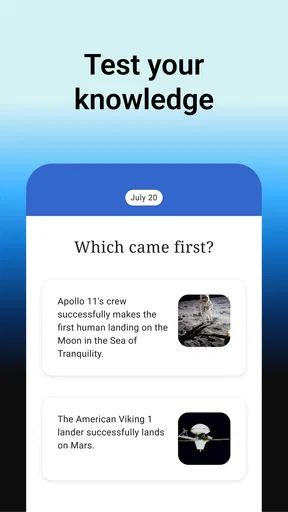
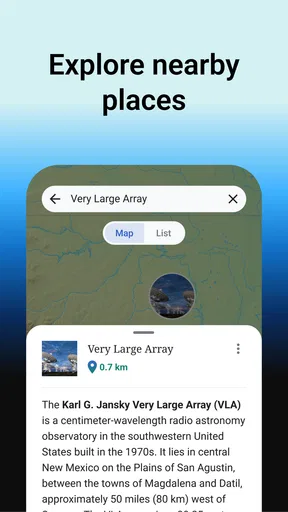
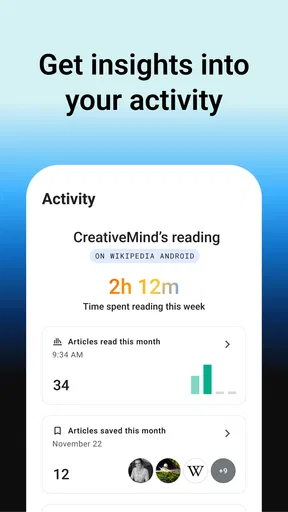
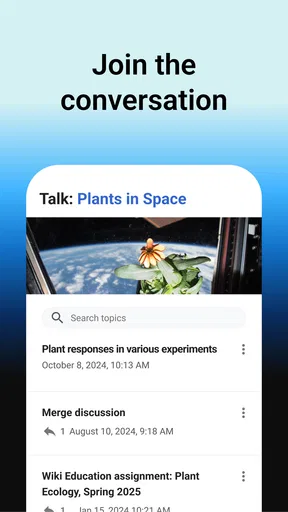
 Analysis by AppCompare
On a connected phone, Wikipedia can turn a stray question into a useful reading session in seconds. I often open it to check a name, place, or unfamiliar term, then end up following the links to understand how the pieces fit together. That flexibility is the app’s main appeal: it is not just a quick lookup tool, but a convenient starting point for exploring a subject. Still, I treat it as a way into a topic rather than the final word, especially when accuracy matters.
When the connection is part of the experience
Search, article loading, and moving between references all work best when the network is behaving. In practice, that matters most when a quick query grows into a chain of questions: I might start with a person’s name, open a linked event, and then check the place where it happened. Each step is easy to follow, but it also means the experience depends on being able to fetch the next page. A weak connection can interrupt that satisfying flow.
For a hurried fact check, I find it useful to keep the question narrow. Search for the specific person, term, or event first, then use the article’s references to judge where a claim comes from. This is more dependable than treating the first paragraph as a complete answer. Wikipedia is especially good at giving me orientation and vocabulary; for a consequential decision, I still look for primary material or a specialist source.
On the move, and in the middle of something else
The app suits the short gaps in a day: waiting for a train, listening to someone explain a subject, or trying to identify a historical reference in a book. I can look up the central idea without opening a browser full of unrelated tabs. It also works well for students who want an initial overview before turning to course readings, and for travelers who want context about a landmark rather than only its name.
A realistic use for me is preparing for a conversation on the way to meet someone. I search the topic, skim the lead to get the basic outline, and check a couple of linked terms that I know I will hear again. If I have time, I note what I still do not understand and follow the citations later. That approach keeps a quick mobile visit useful without confusing a brief overview with deep research.
On a small screen, long articles can feel like a lot to take in, and it is easy to lose the point when links keep inviting another detour. I try to decide what I want from the session before I start: a definition, a timeline, or enough background to ask a better question. That small habit makes browsing feel purposeful rather than endless.
Getting back on track when browsing stalls
If pages take too long to load, I do not assume the information itself is the problem. I check whether the connection is working, retry the search, or come back when the signal is steadier. A search result that does appear can still lead to another page that needs loading, so I avoid relying on a last-minute chain of lookups when I know I will be somewhere with unreliable reception.
Worth Reading Before You Choose

Flipboard Shows What News Apps Must Do Beyond the Feed

Switching to Android Auto Means Rethinking Your Driving Routine

Google Calendar Makes a Crowded Week Easier to Manage

Ludo King Makes the Most of the Minutes Between Plans

Baby Panda World Brings Quick Play to Modern Phones, but Its Game Library Feels Busy

ESPN’s Live Game View Makes Following Close Games Easier
For research that matters, I use a simple recovery routine: keep track of the article or key phrase I was reading, return to it when connectivity improves, and verify important claims through the citations rather than relying on memory. This is a practical distinction between a reading app and a saved research file. If I need guaranteed access to specific material in a disconnected setting, I plan for that separately instead of assuming every page will be available.
Keeping mobile use considerate of data
When I am watching my data use, I keep browsing focused instead of opening every tempting link. A single article can lead to several more, so choosing a clear question helps limit unplanned loading and makes the session easier to finish. On a metered connection, I also save longer reading for a time when I am comfortable using the network, rather than repeatedly refreshing pages while reception is poor.
That trade-off is worth remembering if you are comparing Wikipedia with a search engine. A search engine is often faster for finding a particular page or source across the web; Wikipedia is better when you want an organized explanation and a web of related concepts in one place. Neither replaces the other. I use search for discovery across sites, then turn to Wikipedia when I want a structured overview and references to pursue.
First Impressions
When I first downloaded the Wikipedia app, my initial thought was, "How different could this be from the website?" But boy, was I in for a surprise. The app is sleek, user-friendly, and designed to make information retrieval a breeze. No more fumbling around with slow-loading pages; everything is optimized for a smooth experience.
Design and Usability
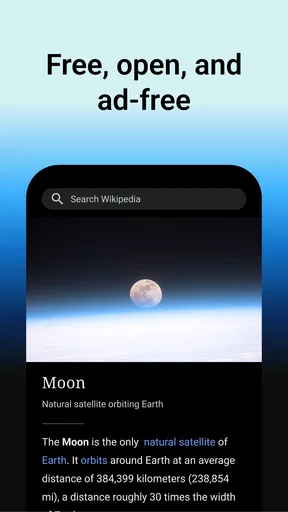
Opening the app, you're greeted with a minimalist design that doesn't overwhelm you with too many options. The focus is purely on content, which is exactly what you want when you're trying to learn something new. The search bar is prominent, encouraging you to dive right into your quest for knowledge.
One of my favorite features is the "Explore" tab. It's like having a personal guide to what's trending in the world, with articles handpicked based on your interests and current global events. It's perfect for those moments when you're curious but don't know exactly what to look for.
Offline Access
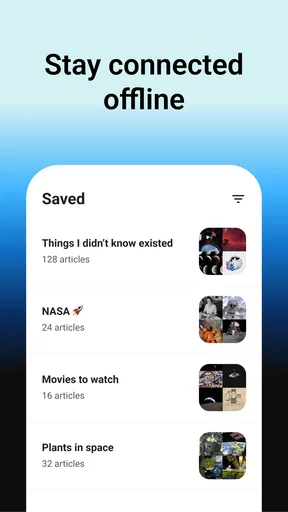
Now, let's talk about one of the app’s standout features—offline access. You can save articles to read later, which is a lifesaver when you're on a plane or in a remote area with no internet. This functionality ensures that your thirst for knowledge is never quenched by a lack of connectivity.
Language Support
Another impressive aspect is the app’s extensive language support. With over 300 languages available, it’s an inclusive tool that breaks down barriers, allowing users from all over the globe to access the same vast pool of information. It's not just about reading in different languages; you can also switch the language of an article with a simple tap if you're brushing up on your language skills.
Night Mode and Customization
If you're a night owl like me, you'll appreciate the night mode option. It’s easy on the eyes and makes late-night reading sessions much more comfortable. Plus, the ability to customize font size and theme means you can tailor your reading experience to suit your preferences.
Continuous Improvement
What makes the Wikipedia app truly special is the community-driven nature of its content. Articles are constantly updated and improved by contributors from around the world. This dynamic flow of information ensures that the content remains current and reliable, although it’s always good to check citations for accuracy.
Final Thoughts
In a nutshell, the Wikipedia app is a powerful tool for anyone who loves to learn. Whether you're a student, a professional, or just someone with a curious mind, this app is sure to become your go-to resource for reliable information. It’s like having a knowledgeable friend in your pocket, ready to answer your questions at a moment’s notice.
So next time you're in a trivia showdown or just need to satisfy your curiosity, give the Wikipedia app a whirl. You won't be disappointed!
Who will get the most from it
I would recommend the app most to curious readers who want a quick, structured introduction to a subject and are comfortable checking sources when the stakes are higher. It is also handy for students at the start of an assignment: use an article to learn the key terms, identify related topics, and find citations that can guide further reading. That is a better role for it than copying an article into a report as if it were a finished research source.
It is less suitable for someone who needs a guaranteed answer without evaluating evidence, or for work where a small factual error could have serious consequences. In those situations, I would go directly to authoritative documents, professional guidance, or specialist publications. Wikipedia can help me understand what to look for, but the ease of reading should not be mistaken for a substitute for verification.
Small habits that make reading more useful
One practical way to avoid getting lost is to treat links as a reading trail rather than a list of things to open immediately. I read the overview first, decide which unfamiliar term is actually blocking my understanding, and follow only that link. Then I return to the original article instead of branching repeatedly. This keeps the app’s connected structure useful without turning a five-minute question into an aimless tour.
When I am comparing two related subjects, I look for the same kinds of details in each article: definitions, dates or sequence where relevant, and the references behind the central claims. The point is not to assume every article is equally complete; it is to notice where the coverage is strong and where I need another source. This method is especially helpful with topics that have competing interpretations or change over time.
Choosing it over other ways to look things up
Compared with reading Wikipedia in a mobile browser, the dedicated app gives the experience a more focused, reading-first feel. A browser remains the better choice when I need to compare several websites, move between search results, or work with pages outside the encyclopedia. For a self-contained overview with internal links and references close at hand, I prefer the app; for broad web research, I switch back to a browser or search engine.
Books and specialist reference works are often better when I need a carefully bounded treatment of a subject, while Wikipedia is convenient for getting oriented across many topics. The balance is breadth and speed versus depth and editorial control. I would not expect one app to replace a library or an expert source, but it can help me decide what to read next and which questions deserve more attention.
What to expect before installing
The official app is published by the Wikimedia Foundation, is free, and sits in the Books & Reference category. Its average rating is 4.4 from around 694 thousand ratings, with about 16 thousand written reviews and over 50 million installs. It is rated Everyone 10+, and the current version is 50586-r-2026-05-12, for devices running Android 6.0 or later. Those details make it a widely used, accessible option, though the right fit still depends on how you plan to use reference material.
If you are wondering whether it is useful without a steady connection, I would plan around the network rather than count on every reading session going smoothly. The earlier discussion of loading and recovery is why I avoid starting a multi-article research trail just before going offline. For a dependable offline reference, choose a solution designed and prepared for that need; for everyday connected browsing, Wikipedia remains a strong companion.
My connectivity verdict is straightforward: the app is most satisfying when a stable connection lets you move naturally from a question to context, links, and citations. A slow or absent connection can break that rhythm, so I would not rely on it as my only reference in a place where access is uncertain. Used with that limitation in mind, it is an easy app to keep around for everyday curiosity—and a thoughtful first stop, not the last word, when I want to learn.
Pros
- Extensive and reliable information source.
- Ad-free browsing experience.
- Available in multiple languages.
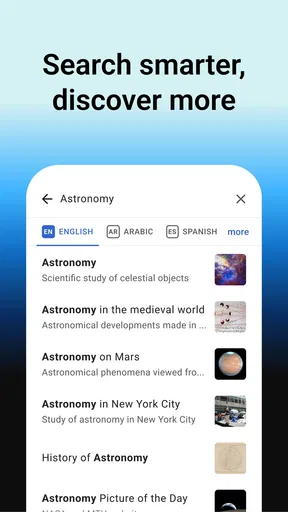
- Easy to navigate and search.
- Regularly updated content.
Cons
- Can be edited by anyone.
- Requires internet connection.
- Occasional server downtime.
- Text-heavy interface may deter some users.
- Lacks multimedia content.
FAQs for Wikipedia
What is the Wikipedia app used for?
The Wikipedia app provides users with access to the vast resources of Wikipedia, allowing them to search and read articles on a wide range of topics. It offers offline reading, quick search capabilities, and a streamlined mobile interface, making it convenient for learning and research on the go.
Is the Wikipedia app available for free?
Yes, the Wikipedia app is completely free to download and use on both Android and iOS devices. There are no in-app purchases or subscription fees, making it accessible to everyone who wants to explore the wealth of information available on Wikipedia without any cost.
Can I use the Wikipedia app offline?
Yes, the Wikipedia app allows users to save articles for offline reading. This feature is particularly useful for users who want to access information without an internet connection, such as when traveling or in areas with poor connectivity. Simply save the articles while online, and access them anytime.
How frequently is the Wikipedia app updated with new content?
The Wikipedia app is regularly updated to include the latest content from Wikipedia's vast database, which is constantly being edited and expanded by contributors worldwide. This ensures that users have access to the most current information available on a wide range of topics.
Is the Wikipedia app suitable for research purposes?
While the Wikipedia app is a great starting point for research due to its extensive range of topics, users should verify information with additional sources, as Wikipedia content can be edited by anyone. It's a helpful tool for gaining a broad understanding of subjects, but critical research should involve multiple, reliable sources.


